
|
|
| Internal USGS Access Only |
Note: Pressing the Windows key (next to Ctrl) and letter "e" at the same time will bring up the File Explorer. Network drives can be found under "My Computer".
Double-click on the AFS toolbar icon  , and in the window that appears under the "Tokens " tab select "Obtain New Tokens... " and authenticate using your assigned class userid and AFS/Kerberos password.
Switch to the "Drive Letters" tab and press "Add." Select a Drive Letter (class examples use the drive letter X). Leave all the other defaults and press OK.
When you have finished this step, close the AFS login window.
You have a home directory at
X:\usgs.gov\user\userid
Where X is the drive letter mapped to AFS on your system and userid is your assigned class userid.
From the menu File, select New > Folder and set the name to public_html
All of the work that you do for this class will be done in this "public_html" directory.
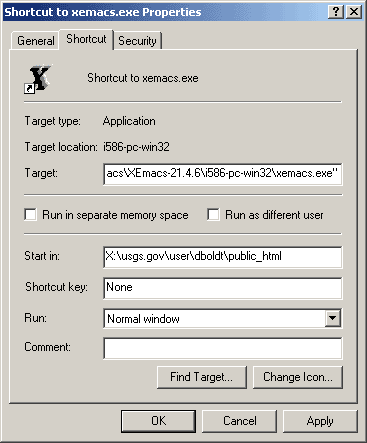 Use the right mouse button to drag the Xemacs
icon onto your desktop, and chose option
Create Shortcut(s) Here
Use the right mouse button to drag the Xemacs
icon onto your desktop, and chose option
Create Shortcut(s) HereHelpful information on xemacs is provided in the Web document
Using XEmacs to Edit html
Be patient, This can take a minute or so the first time, until the program is cached locally, and 10 seconds or so subsequently.
You should now be looking at the html code for a new document. Click on the Save icon to save.
Some students have picked a theme which they carry through all of the lab assignments. For example, one pair of students chose sailing as a motif. You will be modifying this document throughout the week: Feel free to make it something fun.
Challenge! Create your Web
document without ever
typing an HTML tag, always using the right mouse button.
In some
cases this will teach you correct html syntax, for example: An
image tag, IMG, can only be created inside an existing tag, such as
P.
We suggest creating the tags first, and then adding text between
them.
Start up a web browser. We suggest that you use Netscape 7 for the labs.
You will be importing images into your web page in this and other labs. You might consider creating a "images" directory under your "public_html" area. To download an image using Netscape, click on the image with the right mouse button and select Save Image As. When you bring up an <img> tag in XEmacs, you will be prompted at the bottom for hte image source and alt text.
You will be able to access any documents in your
public_html directory by using the URL
http://webclass.usgs.gov/~userid/file.html
Where
userid is your userid and
file.html is the name of an HTML file
created in your public_html
directory.
Note: The tilde (~) is important!
Your first Web Document should present the following material (Don't worry about centering, we'll cover that in the Cascading Style Sheets section).
                        A Heading


A paragraph of text which can consist of whatever you feel
like typing, cutting and pasting, or otherwise acquiring.

 * a bullet list
 * with an included numbered list
   1. one
   2. two
   3. three
 * the last bullet

                   A second level heading

Include an image here, perhaps images/yin_yang.gif

A Glossary-type listing with two examples:

suds
   the soapy stuff (if not the beery stuff)
duds
   those things washed in suds (but not the beery kind)


Experiment with making some text strong and emphasizing
others.  Make a link to an external document, something
like http://water.usgs.gov/usgs/, for instance
and make a link back up to the top of your page.

     Preformat a section of text
     so that             you see
     how text             can be
     aligned                 and
     spaces preserved   with PRE

And then use a
few BR tags to
get some short
lines.

A THIRD LEVEL HEADING

And a small table containing whatever you wish.  Try spanning
columns and rows and see what the cellpadding, cellspacing and
border attributes do.

Finally, create an address section beneath a horizontal rule with
your email address linked with a mailto:URL.  Move the closing
address tag so it includes the last modified date as welll.
Use the validation service at Page Valet or W3C to validate the html.
You will find it very helpful to have line numbering turned on.
assignment 1
![[up]](../images/a_up.gif)
![[forward]](../images/a_right.gif)
|
"Mastering a Website" online course Created and maintained by Lorna Schmid and David Boldt. Last modified: Fri Aug 22 19:20:24 Mountain Daylight Time 2003 |
