 |
|

|
FIX RELEASED: If Printhydra is not working for you, please see the IMPORTANT NOTE under the "requirements" section below - jpn 9/20/05
This script is not yet supported (and may never be), but is provided because many users may find it valuable. Questions about this script should be referred to the script author. The status of the script is noted.
Name:
Printhydra - A utility to do screen dumps from the Hydra zoom window.
Status:
This script was originally developed in Maine. The idea behind the script was reviewed extensively by NWIS and SWUG for possible use within ADAPS, but the details were found to be too problematic to support nationally. A true print option within Hydra will likely need to be done a different way. However, this Maine script is still very worth trying in your District if you are willing to play with it a little or live with your prints not being absolutely perfect every time. It is still likely much better than what you are doing now (which is probably nothing or dumping a black background image).
Information:
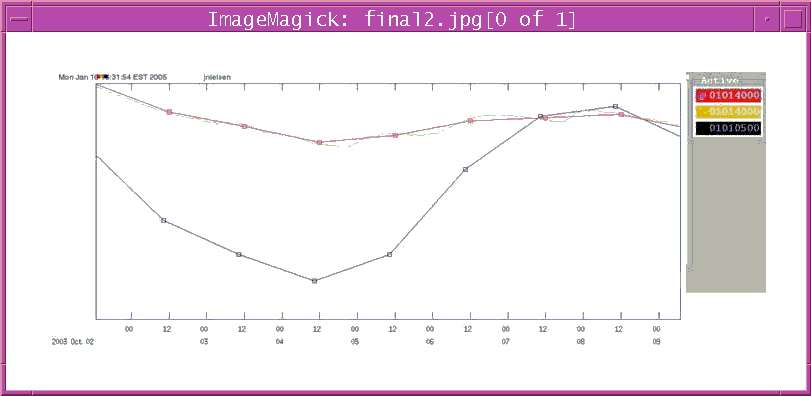
This utility uses a program called ImageMagick, which freely available from the USGS and if you don't have it already on your Sun can easily load it (see below). The script first grabs a screen capture of the current zoom window, then changes the color of the background from black to white and the grid from white to gray but leaves the data colors alone. It then appends a screen capture of the list of curves from the control window to help identify the curves, and prints it to a default printer set up in the script. The printer can also be passed to the script as an argument.
Here is an example printout:
Installation:
There are a couple ways to consider installing this script.
The first is to simply run it locally whenever you need to print. You would do this by opening another Sun window and running the script while you are in Hydra with the plot you are interested in up in the zoom window. If you ran it this way the script file itself could be stored anywhere that was executable, either locally or in some common location.
However the down side of that approach is that it requires you to have a second Sun window open while in ADAPS. The Maine District got around this problem by adding the command directly to the zoom window in Hydra. When this was done they were able to print directly from Hydra by clicking on the upper left Unix bottom in the zoom window itself. Below are the steps that Maine took to implement this in Reflection-X. Similar steps would need to be taken from Citrix but to date no one has tried it there. In theory everyone should be able to do what Maine did one way or another, but whether or not you can figure out how to make it work in your situation is not a given as there are a lot of variables between systems and users regarding the things that can affect your Sun window manager. This variation from system to system is the main reason this approach cannot be picked up by NWIS for use nationally, and is why this script is in the "unsupported" section of the scripts web site. But don't let that stop you from giving it a try. It might very well work right out of the box or with minimal tweaking, and the need for a print option from Hydra is great enough to be worth a little effort.
It should look something like this:
!###
!#
!# Specify client-specific window menus
!#
!###
Dtwm*Sna3179g*windowMenu: NoAcceleratorWindowMenu
Dtwm*sOftPC*windowMenu: NoAcceleratorWindowMenu
Dtwm*FrontPanel*windowMenu: DTPanelMenu
#jmdudley 3/18/03 change Zoom window menu
Dtwm*Zoom*windowMenu: ZoomWindowMenu
One problem you might have after installing this is that it does not change the background or grid correctly. This may be related to the screen colors that your computer uses given the settings of various variables specific to your setup. If that is the case you need to figure out exactly what color your machine is using for the background and grid and modify the script to work with those colors.
Script Language:
sh
Requirements:
Need ImageMagick loaded on your Sun. It should already be there, but if not you can get it at: http://unix.usgs.gov/solaris/imagemagick.html.
IMPORTANT NOTE: at the present time this script is broken when used with the current version of libtiff (3.7.3-1). On 9/15/05 SUN-TAC sent the following email to all SAs regarding this problem - jpn 9/20/05
With the latest version of the libtiff rpm, 3.7.3-1, Imagemagick creates
tiff files that are unrecognizable. The temporary fix for this issue is to
revert back to libtiff 3.7.1-1 rpm. If a site is using Imagemagick to create
tiff files (this includes sites using Office of Surface Water's printhydra
script), they should install libtiff 3.7.1-1.rpm -q libtiff # Check the current version
rpm -Uvh --oldpackage ftp://disftp.er.usgs.gov/pub/SunOS/libtiff-3.7.1-1.usparc.rpm
Author(s):
Joel Dudley, Augusta, Maine -- although Joel gets all the credit in the world for developing this script, please do not address your quesstions to him. Send questions to GS-W OSW Scripts@usgs.gov. However also note that this is a non-supported script. Although we think it is worth your while to download this script and give it a try and are willing to provide limited help in tweaking it, we can't guarantee that it will work for everyone.
Known Problems/Limitations/Need Improvements:
Many. This is not the perfect solution to printing from Hydra. It is just better than the current known alternatives. If you have some approach that works better than this, please send it in!
Scripts: